


NewsLeecher – Downloading using NZB files
Page 5/8 of this article
Nowadays downloading using NZB files is the most popular download method. If you don’t know exactly what NZB files are, I suggest you take a look at the NZB tutorial.
If you already have an NZB file, first open the Queue tab. Here you will find a button called Import NZB.

Just click on it and in the new window browse to your NZB file and open it. The headers the NZB contained are imported and the items are placed in the download queue and downloading will start. Also see your Queue tab for the result.
A second way to import NZB files is by double-clicking the file in Windows. If you check the option Associate *.nzb in the settings, NewsLeecher will be opened and the NZB file will be imported automatically. Normally the files are downloaded to the default download folder. If you don't want this to happen, follow the next steps: First make sure NewsLeecher is not connected to the news servers when importing an NZB file. This will prevent NewsLeecher from starting to download immediately. Pausing NewsLeecher is another possibility. Next select the headers which were imported and right-click your selection. Choose Change DL folder and enter the desired location. Start the download by clicking on the Connect button again.
Anyway, after importing the NZB files, downloading will start. If nothing seems to be happening, check whether NewsLeecher is connected. The Connect button has to be 'pushed' so that the text changes to 'Online':

The download starts and in the status column you can see NewsLeecher downloading. At this moment some files already have been downloaded, one is being downloaded and some are still queued. They will be downloaded when NewsLeecher has finished downloading the preceding parts. The PAR2 repair files are Paused as they will only be downloaded when needed.
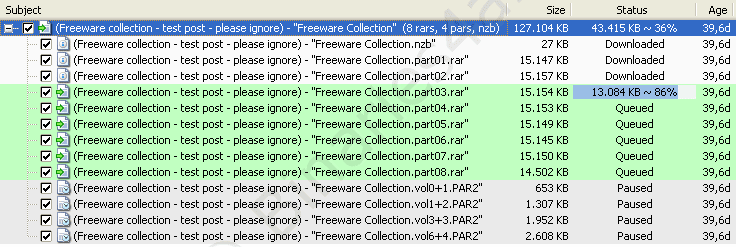
We can also monitor our downloads in the status screen below. The information also shows us which server is downloading which part of a file.

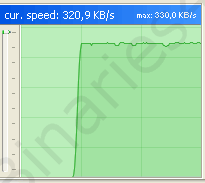
In the NewsLeecher status bar we can see the maximum speed NewsLeecher reached while downloading, the current download speed and the free disk space:

The graph also provides us with information about the download speed. You can limit NewsLeecher's download speed by using the slider on the left. This can be useful when you don't want NewsLeecher to occupy your total bandwidth.
The Queue tab provides us with a list of the files that are currently waiting for download. Furthermore, this tab gives us some additional options regarding the download queue:

| The four arrows | Change the position of one ore more files in the download queue. |
| Cancel | Delete all selected item from the queue. |
| Pause-icon | Pause selected items. |
| Play-icon | Resume selected items. |
| When Empty | Select an action which should be performed when NewsLeecher downloaded all un-paused file in the queue:
|
It is possible to pause all downloads with one click. Just hit the Pause button:

You can minimize NewsLeecher to your system tray (next to the clock) by hitting F9 or by clicking the Tray button:

When the download of an item is finished, this item will disappear from the Queue. If the queue is empty, the download is complete. Now verifying, repairing and extracting the downloaded files is necessary.
To the next chapter:  Repair & Extract