


NewsLeecher - Interface
Page 2/8 of this article
Register
NewsLeecher isn't for free, so when it has not been registered yet, you will see the following screen:
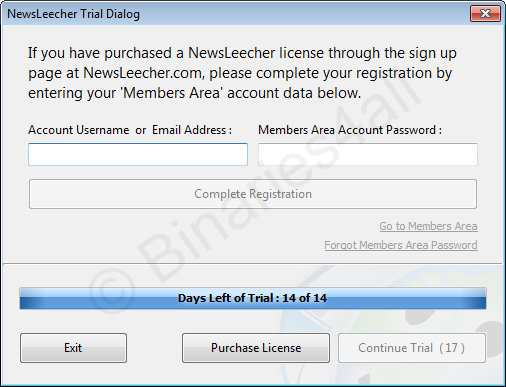
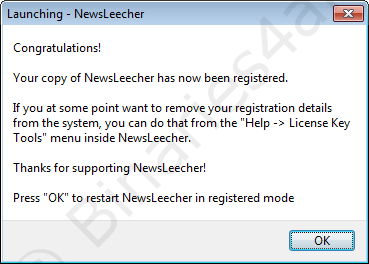
The Continue Trial button appears afer a couple of seconds, after which you can actually start the program. NewsLeecher can be used for 14 days as a trial, after which registering is necessary. Should you have bought a license already, enter your data and click on 'Complete Registration'. Then the following screen will appear:
Interface
NewsLeecher’s main screen is shown below. Before we go on to the settings, I will first explain the various parts of the interface.
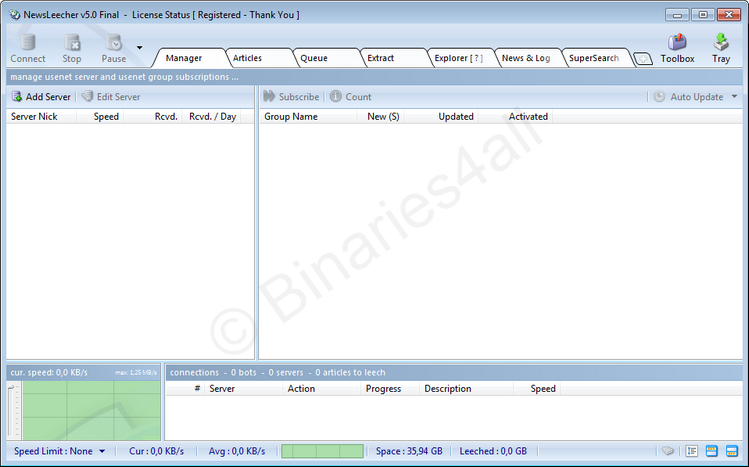
At the top you can see the menu bar including a list to activate a group. The bar beneath it contains a number of buttons that perform the most common actions. Beneath all this we see the most important part of NewsLeecher, a bar in which we can choose between various tabs. The content of the main screen depends on the tab selected.
A brief explanation of the tabs:Manager |
Add servers and Usenet newsgroups |
Articles |
Watch the contents of a Usenet newsgroup |
Queue |
List all items in the download queue |
| Extract | Check on the progress of automatic repair and extraction of the files. |
Explorer |
About the same as the Windows Explorer |
| News & Log | Version information, news and a log |
| SuperSearch | NewsLeecher’s SuperSearch |
Take a look at the bottom left-hand corner. The green section shows us the download speed in graph format. The section at the bottom right-hand corner is used to show the connections to the servers and which action is being performed on a server. Below this there is a status bar, which shows the maximum download speed, the current download speed and the free disk space.
To the next chapter:  Configuration