


FTD - Configuration
Page 2/6 of this article
When we start FTD for the first time, we will see the configuration screen. The only available tab is 'FTD':
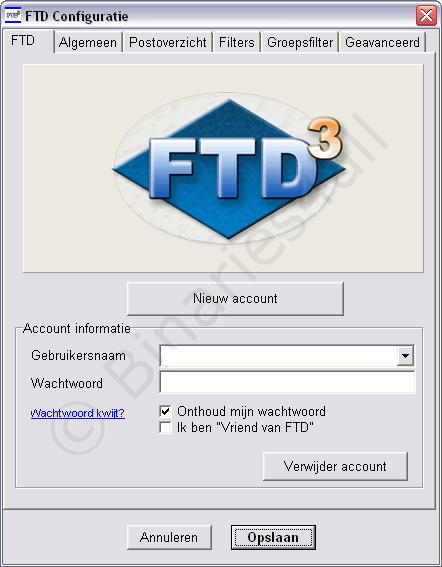
You need to have a FTD account in order to use the program, so we have to create one. Do so by clicking on 'Nieuw' (new). If you already have a working account, then just enter your Gebruikersnaam (username) and Wachtwoord (password) instead of creating a new account.

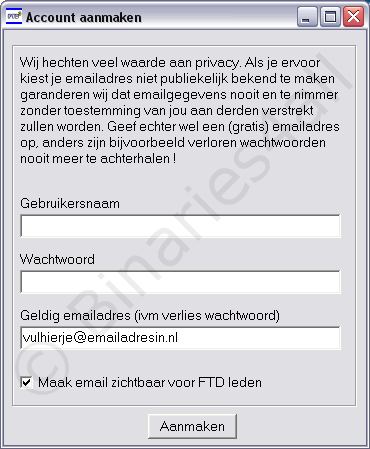
A window appears where we have to enter our desired username and password and a valid email address (geldig emailadres). Set the checkbox 'Maak email zichtbaar voor FTD leden' (make email address visible to FTD members) according to your preferences. The box on top says the following: "privacy is very important to us. If you choose not to make your email address visible we assure you that it will never be given to third parties. Enter a valid email address though, because without one it is IMPOSSIBLE to retrieve a lost password”. After filling in the fields, click on 'Aanmaken' (create account) to submit the form.
After your account has been created, enter your newly created username and password. If you use a proxy server, enter information about that below 'Verbinding' (connection).

FTD starts and the main window appears. Before we start, we have to configure the program and adjust the settings according to our own preferences. Open the configuration window by clicking on 'Programma > Configuratie' in the menu bar, or by clicking on the icon 'Config' which is located next to the 'Updaten' (update) button. The tab 'Gebruikersinformatie' (user information) appears again, where some extra settings have been added.
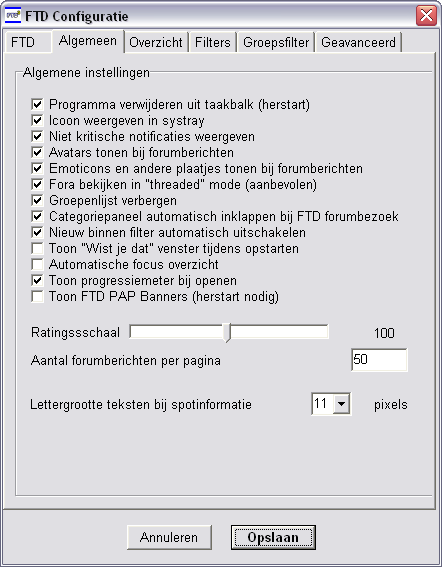
These extra settings at the bottom of the window involve the 'Cache'. I have chosen the maximal values because I would like to see many spots at the same time and I want the program to keep items in its database for a long time.
Let's continue on the tab 'Overzicht' (Overview).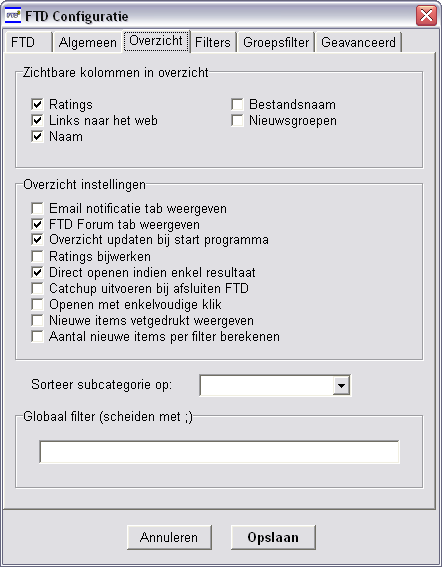
| Dutch name | English translation and explanation |
| Email notificatie tab weergeven | Show email notification tab – activates the email notification feature which is accessible to people who donated to FTD. |
| FTD forum tab weergeven | Show the FTD forum tab. |
| Overzicht updaten bij start programma | Automatically retrieve new spots after starting the program. |
| Ratings bijwerken | Recalculate ratings for every spot every time (slow). |
| Direct openen indien enkel resultaat | Open a spot directly if it is the only result of a search query. |
| Catchup bij afsluiten FTD | Catch up (mark all spots read) when exiting FTD. |
| Openen met enkelvoudige klik | You can single click on spots instead of double clicking to open htem. |
| Nieuwe items vetgedrukt weergeven | Show new items in a bold font |
| Aantal nieuwe items per filter berekenen | Calculate number of new items per category. |
The next tab is 'Filters'. How to use filters is explained in another chapter of this tutorial because it is quite a large topic. For now, just make sure that every check box on this tab is checked. The tab 'Groepsfilter' (group filter) enables us to hide spots of certain groups by unchecking that group in the list. Files posted to unchecked groups will not be shown in FTD.
Now press 'OK' to save the settings and to return to FTD's main screen
Just one more thing to do before we can start: changing the information in our public profile which can be seen by all FTD members. We do this by clicking on 'Opties' (options) -> Mijn gegevens (my personal information) in the menu bar.
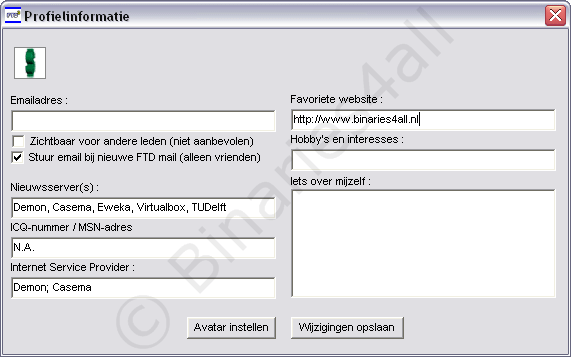
After filling in the information that you would like to share with other FTD members, click on 'Wijzigingen opslaan' (save changes). Now we can really start using the program!
To the next chapter:  Viewing and storing spots